Link Donations to Accounting
A successful transfer from Donations to Accounting consists of two parts. First, you must post and transfer a batch using Enter Donations. Then, you must use the Links to Accounting feature to successfully complete the transfer to Accounting.
The Link Donations button is found under the Special Functions menu of either Donations or Accounting. It opens to the Links to Accounting screen where you can link the Giving Accounts of the Donations module to your Chart of Accounts in the Accounting module:
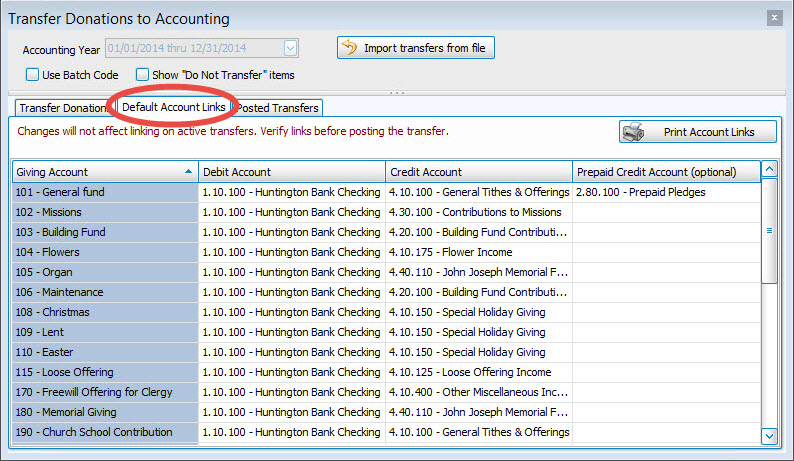
When the screen appears, use the following columns on the Default Account Links tab to make the necessary adjustments:
- Giving Account
Contains the account name and number as they are listed in Donations. - Debit Account
For each Giving Account, click this box to select the desired Debit Account in Accounting. - Credit Account
For each Giving Account, click this box to select the desired Credit Account in Accounting. - Prepaid Credit Account
As an additional option for any giving account you desire to link, you can also link to a Liability Account in Accounting that will serve as a prepaid credit account when a transfer is made from Donations to Accounting.
If you would like to link accounts in a different Accounting Year , select the desired year from the Accounting Year box at the top of the screen.
Print Account Links
To print or export a report that shows the current settings of the links, click the Print Account Links button. When the Account Links Report Options screen appears, make your selections from the following tabs:
Columns Tab
Determines the order and the appearance of the columns displayed.
Sort (or Group & Sort) Tab
Organizes the information into the desired order (and groupings).
The Fonts tab is where you can control the typography of your report.
Click
to restore the default 9.75 Times New Roman.
Once you have made all of your selections, click Print to view a Print Preview and then proceed in sending the file to your printer. You can also Exports most reports and/or Send via Email as a file to be used outside of Church Windows.